Guide
How to Use
CSSVG Editor
Everything you need to know about the CSSVG SVG animation editor — from adding shapes to exporting production-ready CSS keyframes, SMIL, or React components.
The Canvas
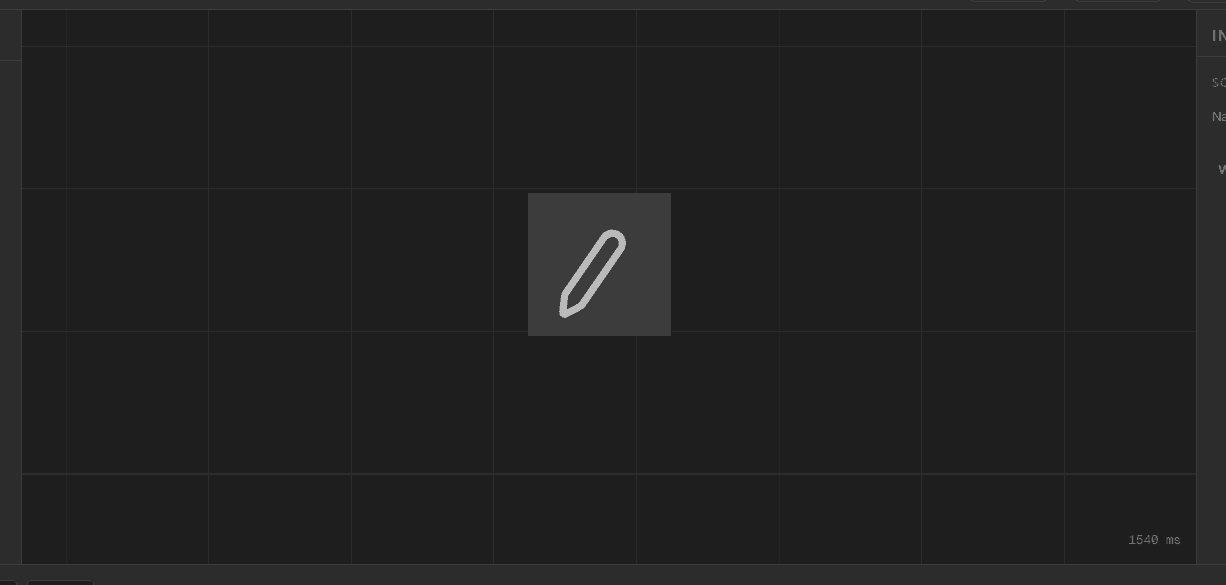
The canvas is the dark central panel where your SVG lives. It matches your scene dimensions exactly — so what you see is what gets exported. Click any element to select it. Drag to reposition. The blue handles on the selection box let you resize. A small tooltip shows the current size in pixels as you drag.
The canvas origin is top-left. An element at X=0, Y=0 is centered on the canvas — position is relative to the scene center, not the corner.
Layers Panel
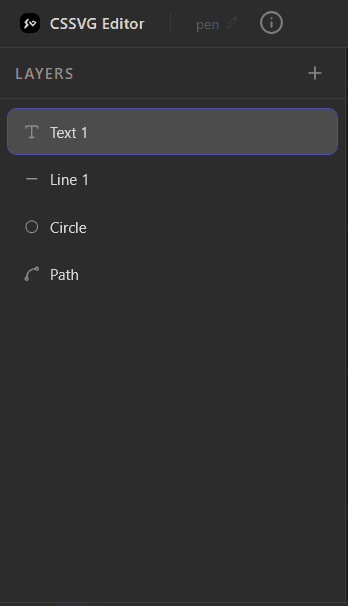
The Layers panel on the left lists every element in your scene. Click the + icon to add a new shape: Rectangle, Circle, Line, Polygon, Path (pen tool), or Text. Drag layers to reorder them — layers higher in the list render on top. Click the trash icon (or press Delete with no keyframe selected) to remove an element.
Rename any layer by double-clicking its name in the inspector. Meaningful names like "loader-circle" make the timeline much easier to read.
Inspector Panel
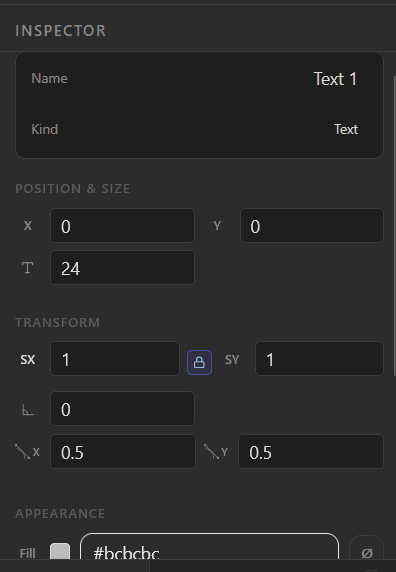
The Inspector panel on the right shows every property of the selected element at the current playhead position. Edit X, Y, scale, rotation, opacity, fill color, stroke, and stroke width. Changes you make while a keyframe exists at that time are recorded into that keyframe. Changes made between keyframes create a new keyframe automatically.
The lock icon between SX and SY keeps aspect ratio locked when scaling. Click it to scale X and Y independently.
Timeline

The timeline at the bottom is where animation happens. Each element gets its own row. Keyframes appear as blue diamonds — drag them left or right to shift their timing. Click the playhead (the vertical line) and drag to scrub through the animation. Use the Play button or spacebar to preview. The duration field (e.g. 0:04.00) and FPS selector are both editable.
Press K to add a keyframe at the current playhead position for the selected element. Press Delete when a keyframe is selected to remove just that keyframe without deleting the element.
Keyframes
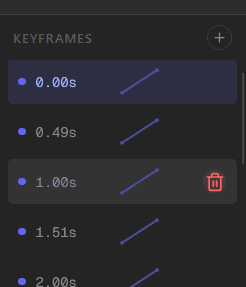
Each keyframe stores a snapshot of an element's full state at a point in time: position, rotation, scale, opacity, fill, stroke, and more. The editor interpolates smoothly between keyframes using the easing curve you set. The Keyframes list in the bottom-right of the inspector shows all keyframes for the selected element — click one to jump the playhead to that time.
The first keyframe is always at 0ms and the last at the scene duration. These are added automatically and cannot be deleted — they anchor the animation loop.
Easing Curves
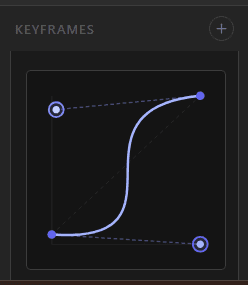
Easing controls how the animation accelerates between two keyframes. Click the diagonal line icon next to any keyframe in the keyframe list to open the easing editor. Drag the two bezier handles to shape the curve, or pick a preset: Linear, Ease In, Ease Out, Ease In-Out, Spring, Bounce, Anticipate, and more.
The Anticipate preset uses a negative control point which creates a slight back-up before the main motion — great for punchy icon animations. Note: SMIL export clamps negative values to 0 to stay spec-compliant.
Exporting
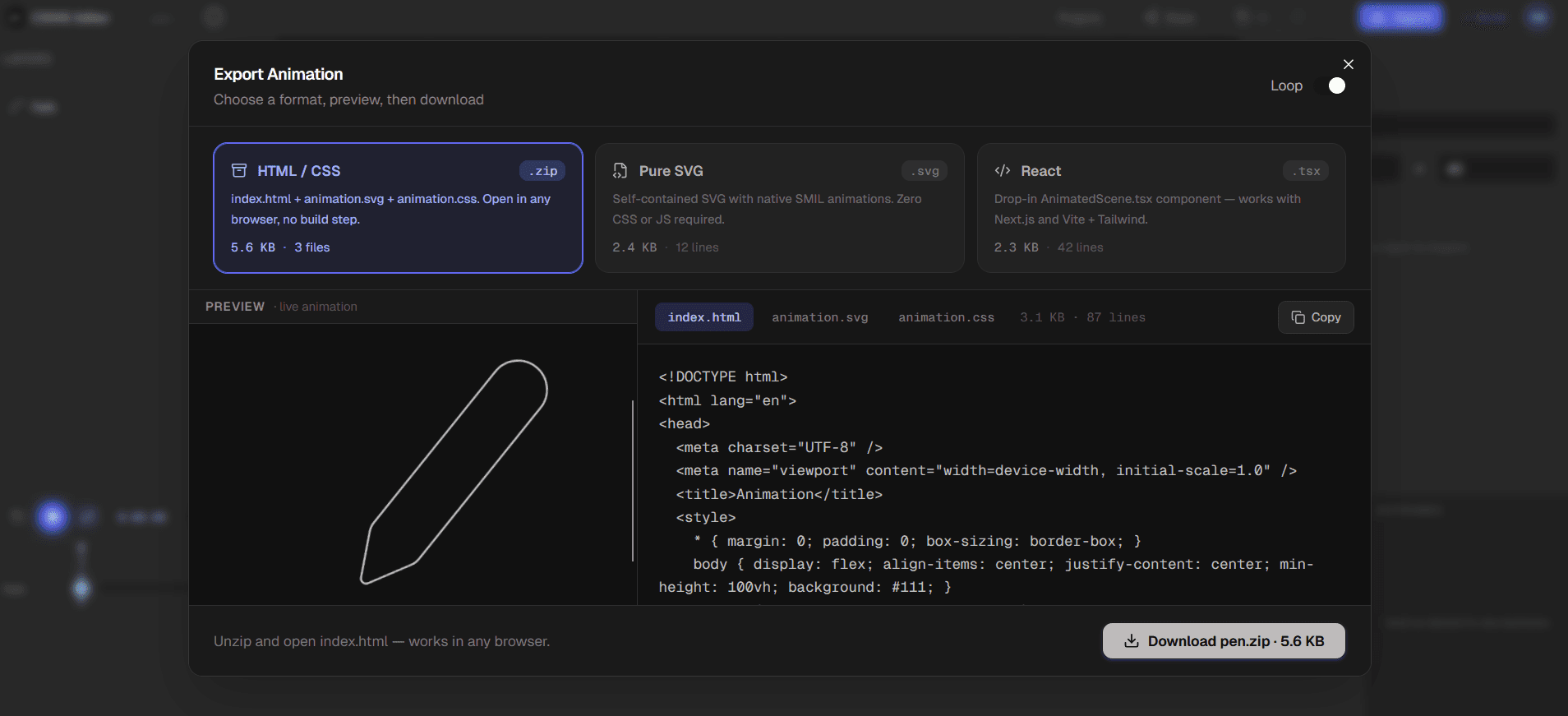
Click the Export button in the top-right to open the Export dialog. Choose one of three formats: HTML/CSS (.zip with index.html + animation.svg + animation.css), Pure SVG (self-contained SMIL .svg file), or React (.tsx component with inline SMIL). A live preview plays your animation on the left. The code viewer on the right lets you inspect and copy the output before downloading.
Toggle Loop off before exporting if you want a one-shot animation that stops at the final frame. The JSX/camelCase toggle in Pure SVG mode converts attribute names for React-safe embedding.
Sharing Projects
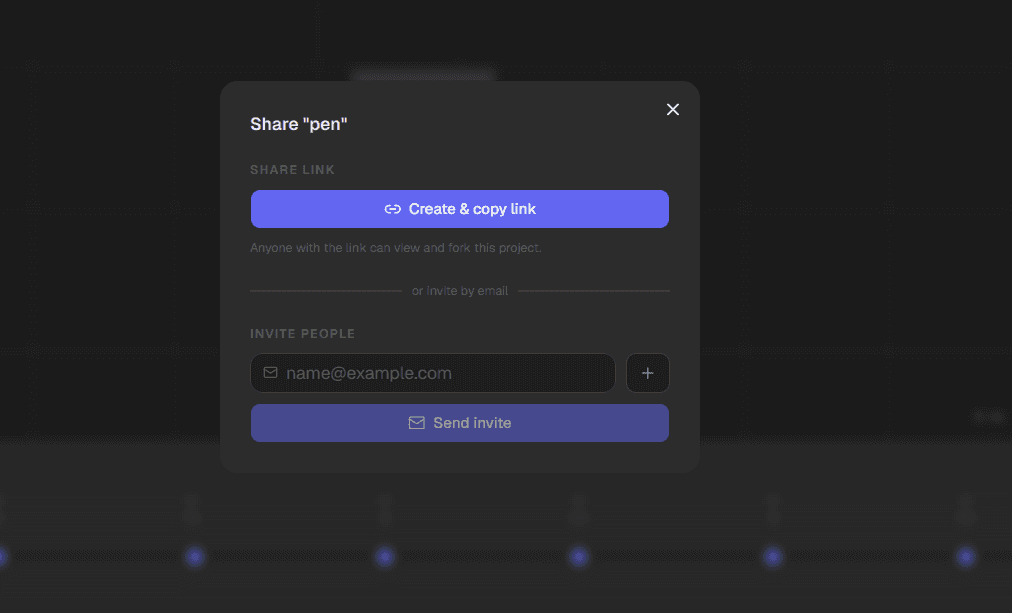
Click Share in the top bar to generate a public link. Anyone with the link can view your animation and fork it into their own projects. You can also invite collaborators directly by email from the same dialog. Shared projects are read-only for viewers — they must fork to edit.
Forking creates an independent copy in the viewer's projects. Changes to the original do not affect forks.
Cloud Projects
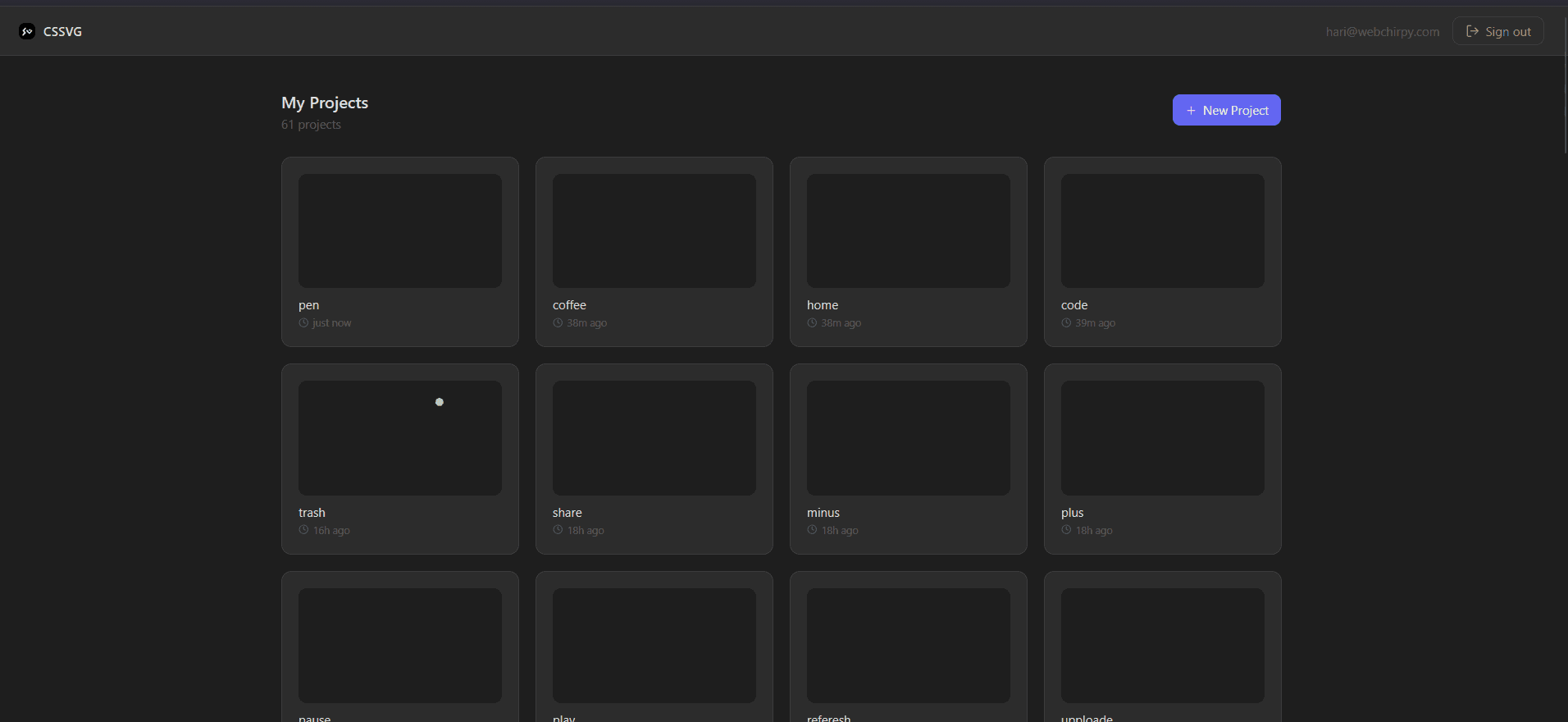
Sign in with your account to save projects to the cloud. Click Projects in the top bar to open the projects drawer — browse, open, rename, or delete your saved animations. Each project shows a live SVG thumbnail so you can see the animation at a glance. Projects autosave as you work.
The editor works fully without an account — projects are stored in the browser. Sign in to sync across devices and get the share/invite features.
Keyboard Shortcuts
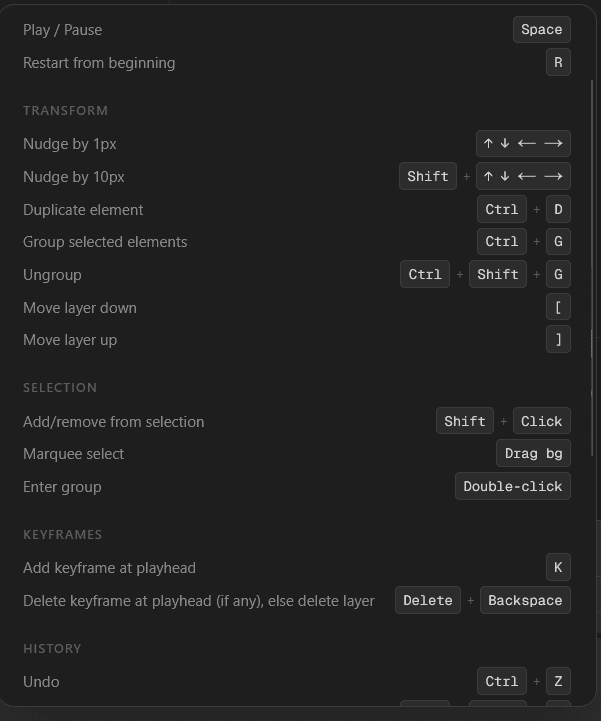
SpacePlay / PauseKAdd keyframe at playheadDelete / BackspaceDelete selected keyframe (or element if no keyframe selected)Ctrl + ZUndoCtrl + Shift + ZRedoCtrl + C / VCopy / Paste elementEscapeDeselect elementReady to build?
Open the editor and start animating. No sign-up required — projects save in your browser automatically.